Open Satori.dmg.
Find the disk image in your Downloads folder and double-click it.
Download
Your download starts automatically. If it did not start, download Satori manually.
Find the disk image in your Downloads folder and double-click it.
Drag Satori.app onto the Applications folder in the window that opens.
Open it from Applications. The first time, Satori adds itself to your Dock.
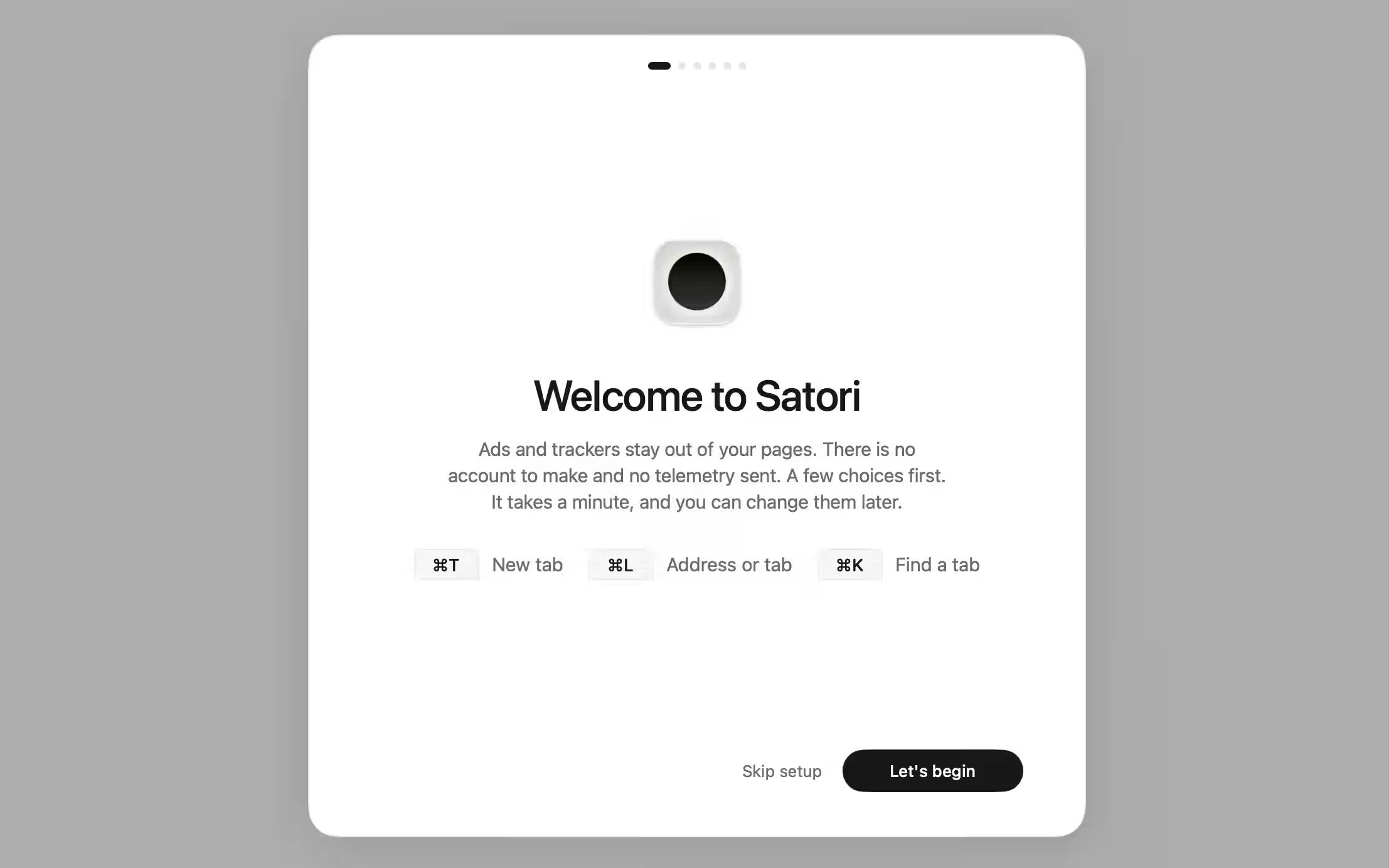
Bring over bookmarks and passwords, then pick a search engine, a theme, where the tabs go, a Soundscape and an icon, and where passwords live. Skip any of them, or change them later in Settings.
Ads and trackers are blocked and cookie banners are closed before you change anything. The last step can make Satori your default browser.
Satori is signed with a Developer ID certificate and notarized by Apple. macOS may ask you to confirm the first time you open an app you downloaded. Choose Open.