Getting started
5 articles
Help center
Short guides by topic. Each article gives the answer first and the details second.
Download Satori.dmg from GitHub Releases and open it. Drag Satori into Applications, then open it from there. Satori needs macOS 15 or later on an Apple Silicon Mac. macOS may ask you to confirm the first time you open it.
If your Dock has been customized, Satori adds itself to it once, the first time it runs from Applications, and restarts the Dock to show it. If you remove it, it stays removed.
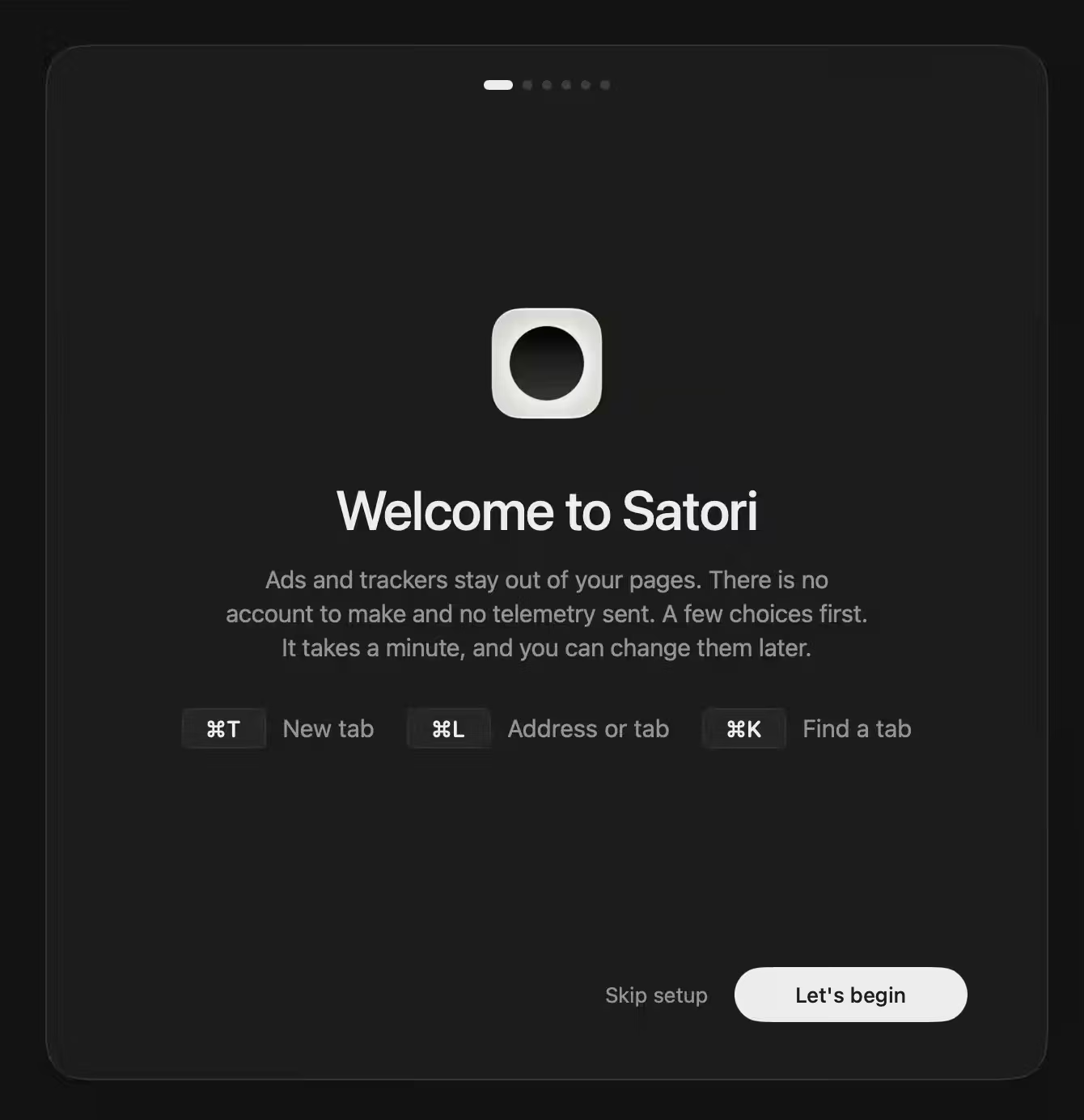
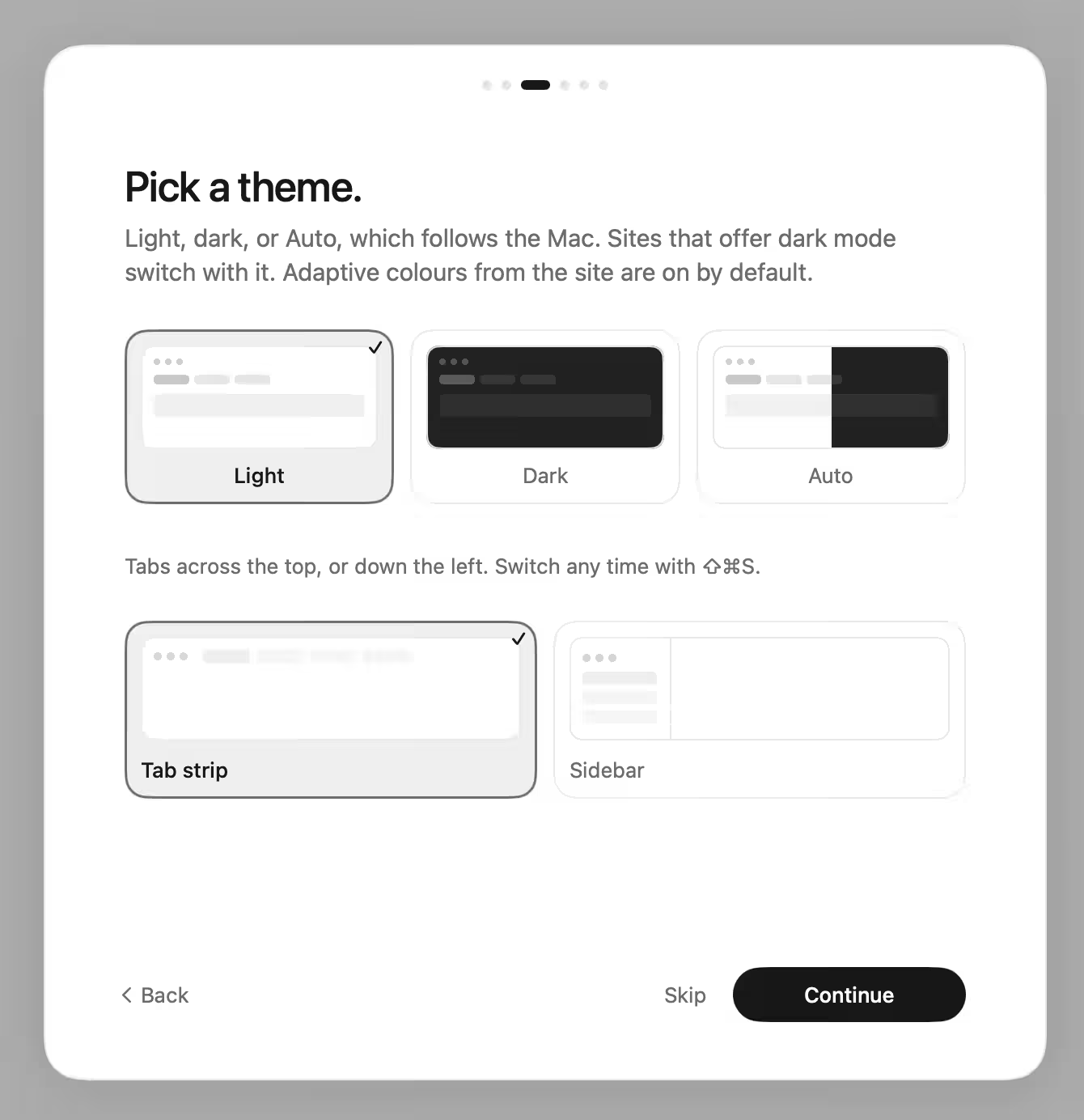
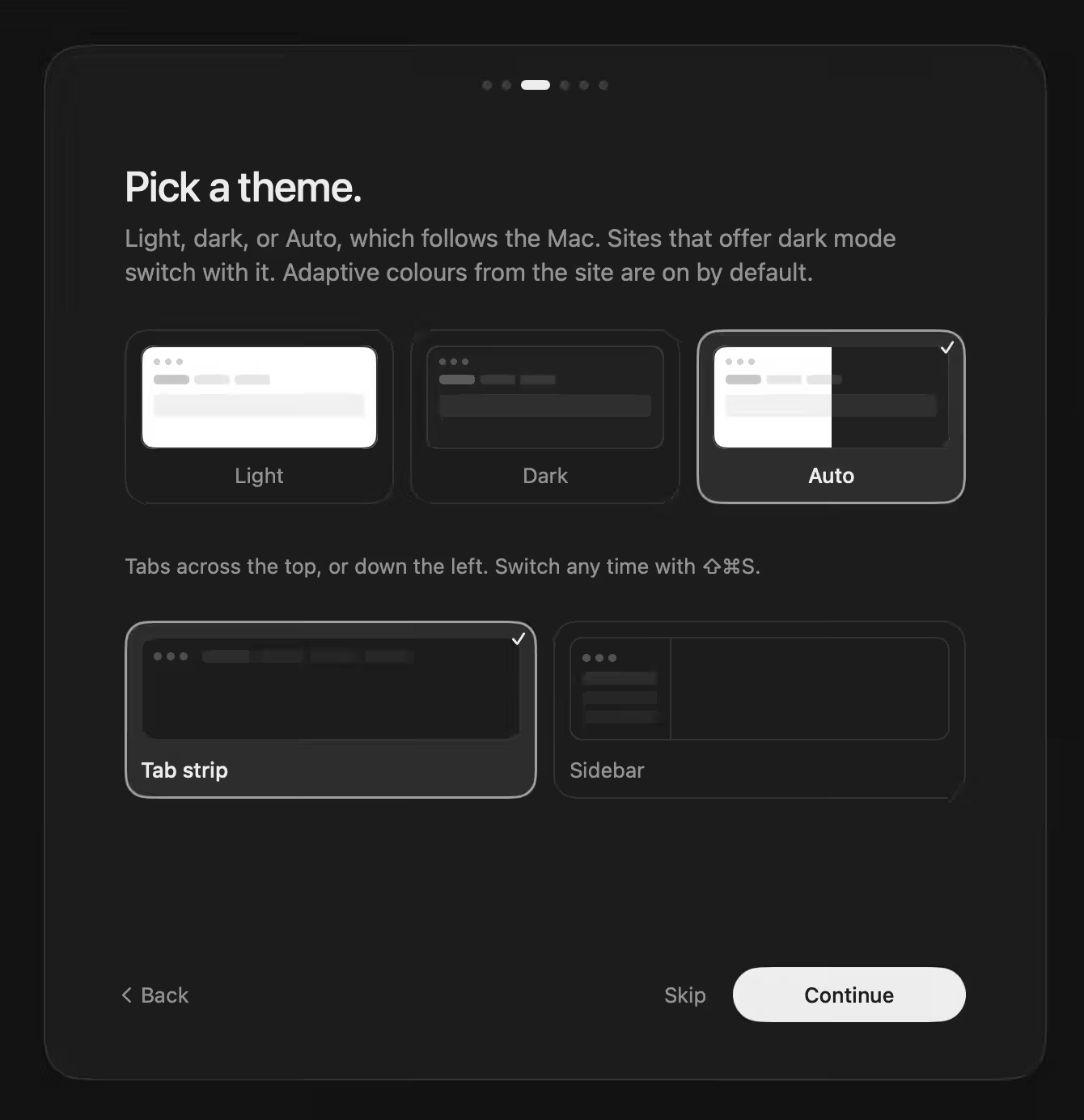
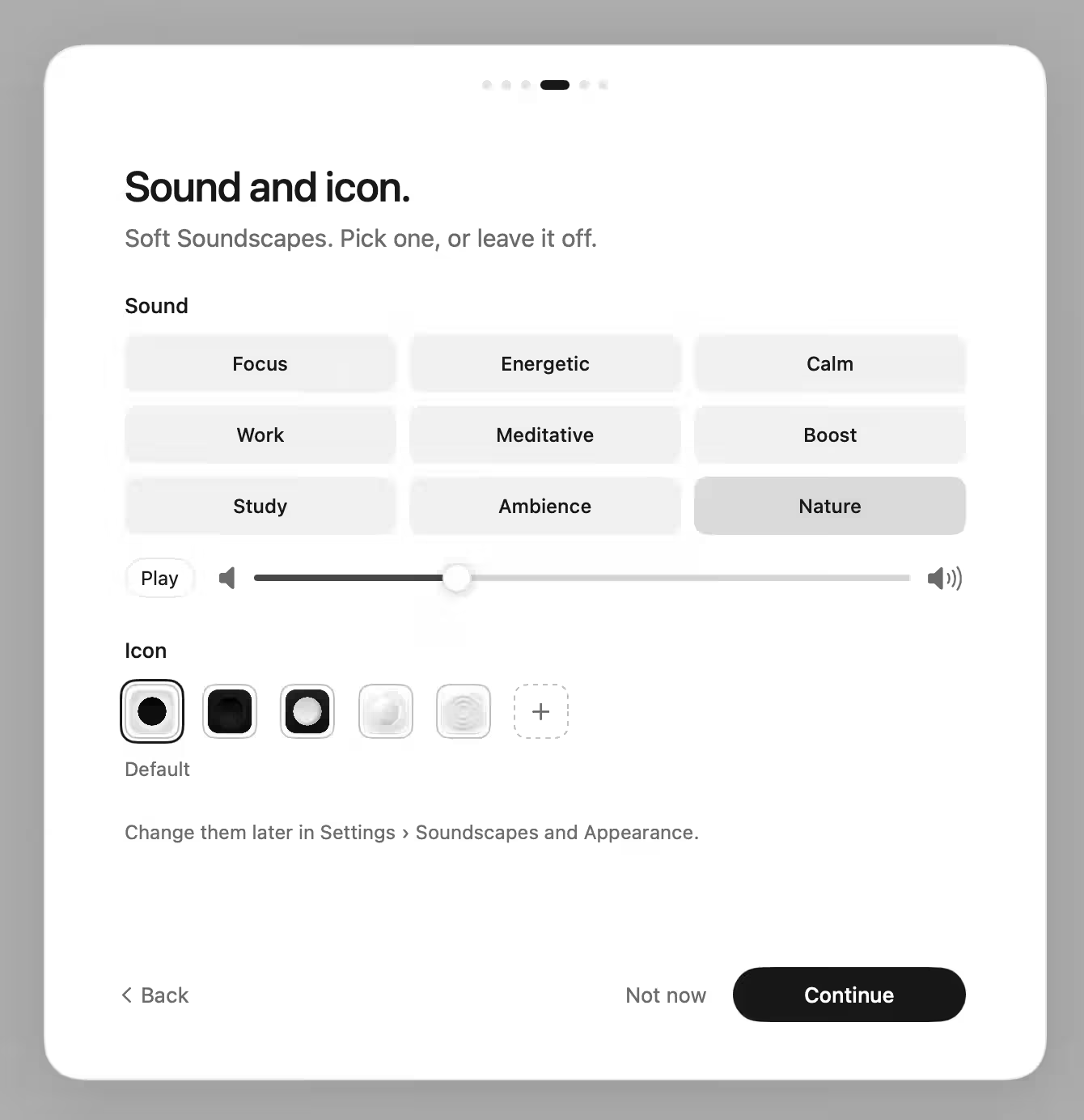
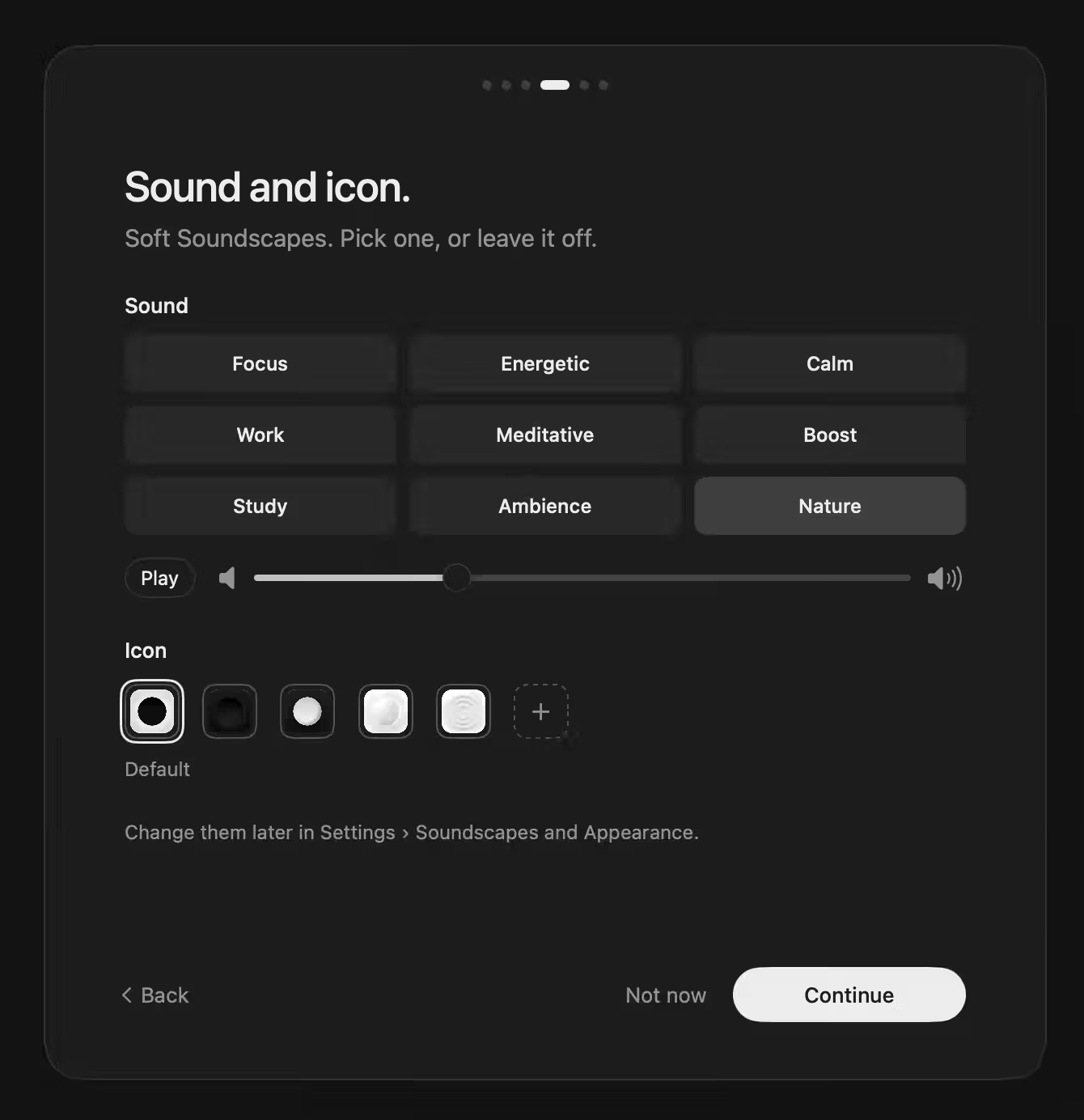
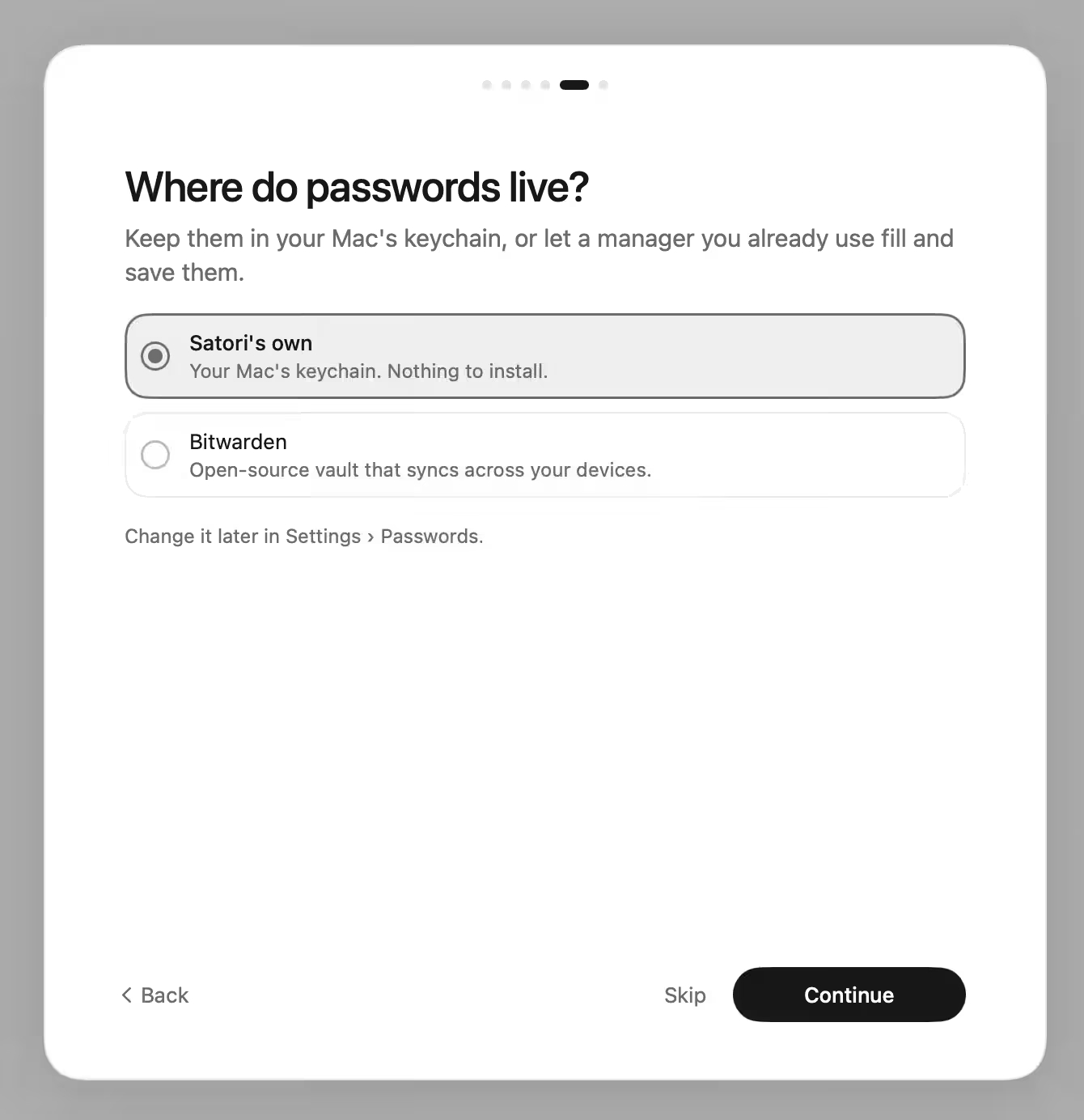
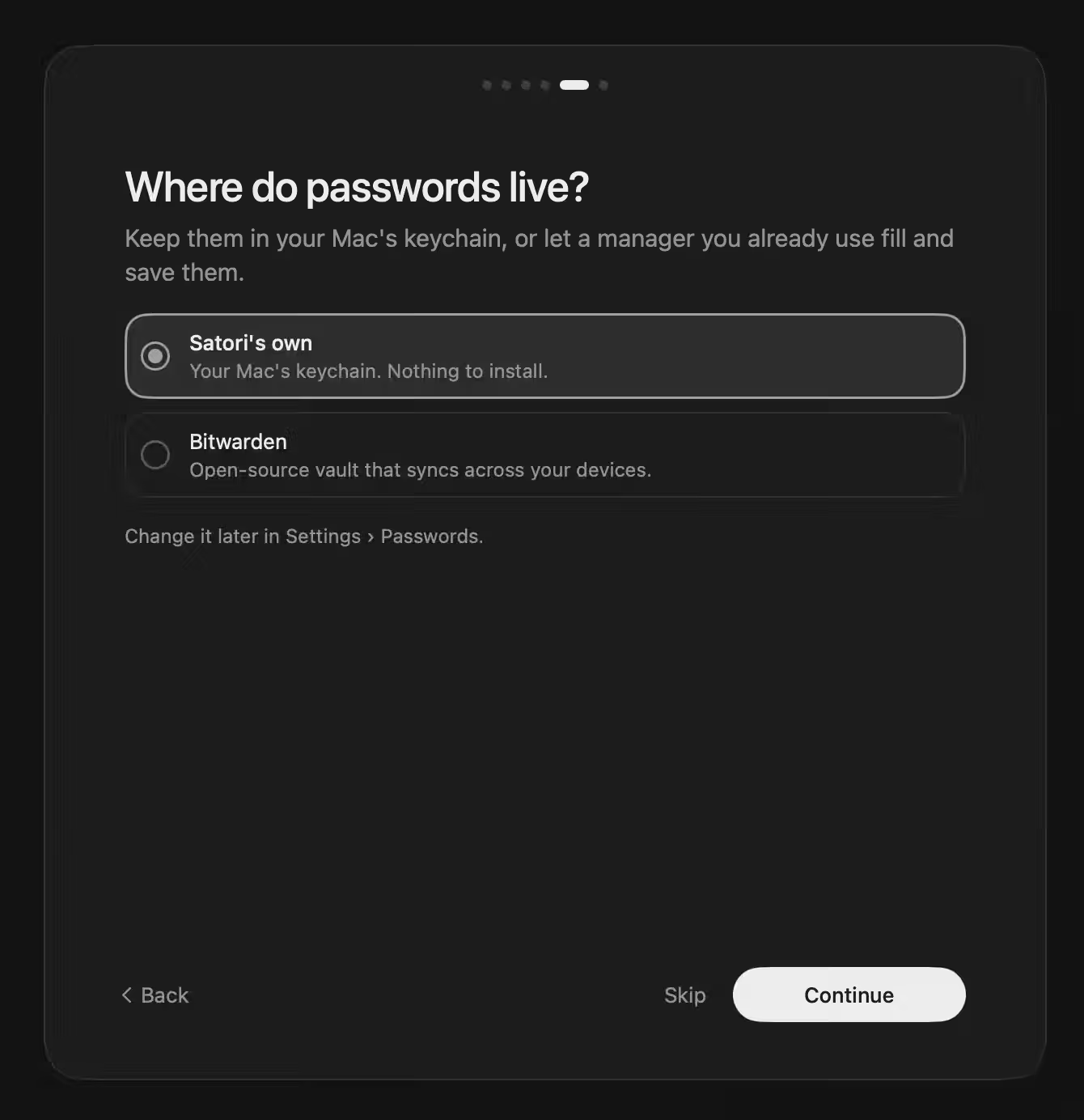
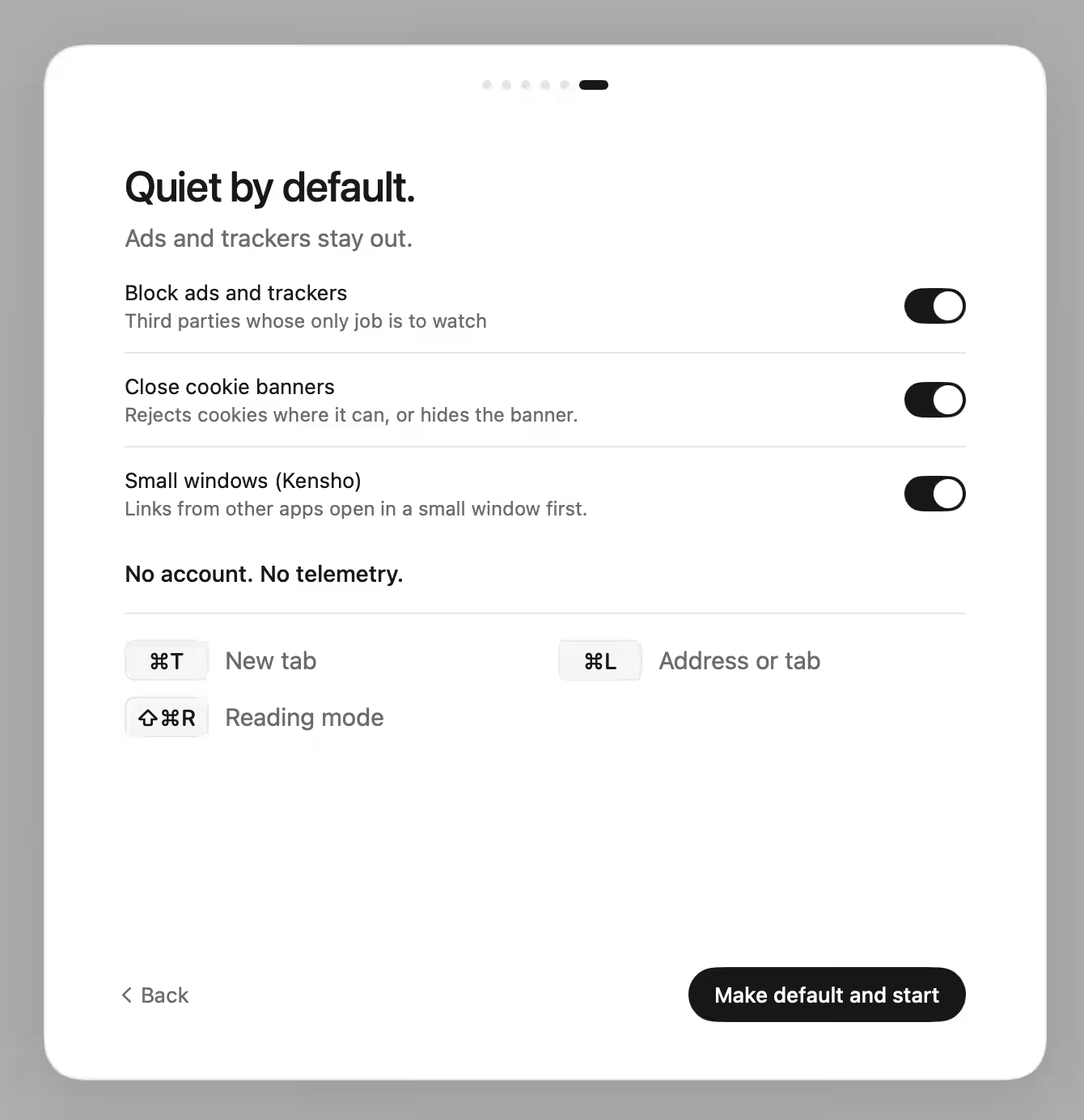
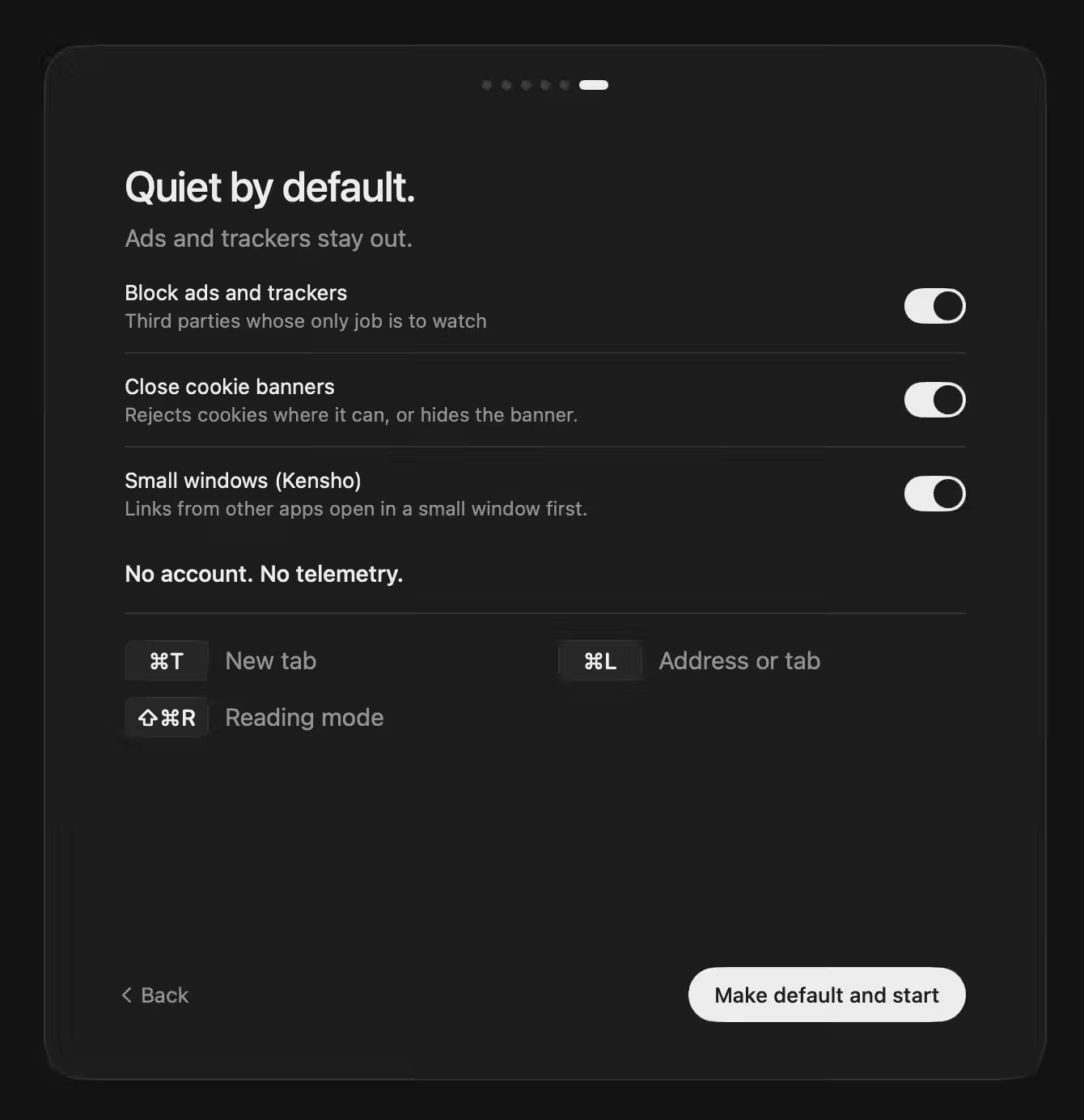
The first-run Welcome asks a few questions, one screen each: a search engine and what to bring over, a theme and tab position, a Soundscape and an icon, where passwords live (on macOS 15.4 or later), and what stays quiet. Every step can be skipped. To open the Welcome again, choose Welcome… in the Satori menu. The Welcome also has one button that makes Satori your default browser and starts it.
You can change the same choices later in Settings › Appearance, Tabs, Search, Soundscapes, and Passwords. The default browser setting is in Settings › General, under Make default.
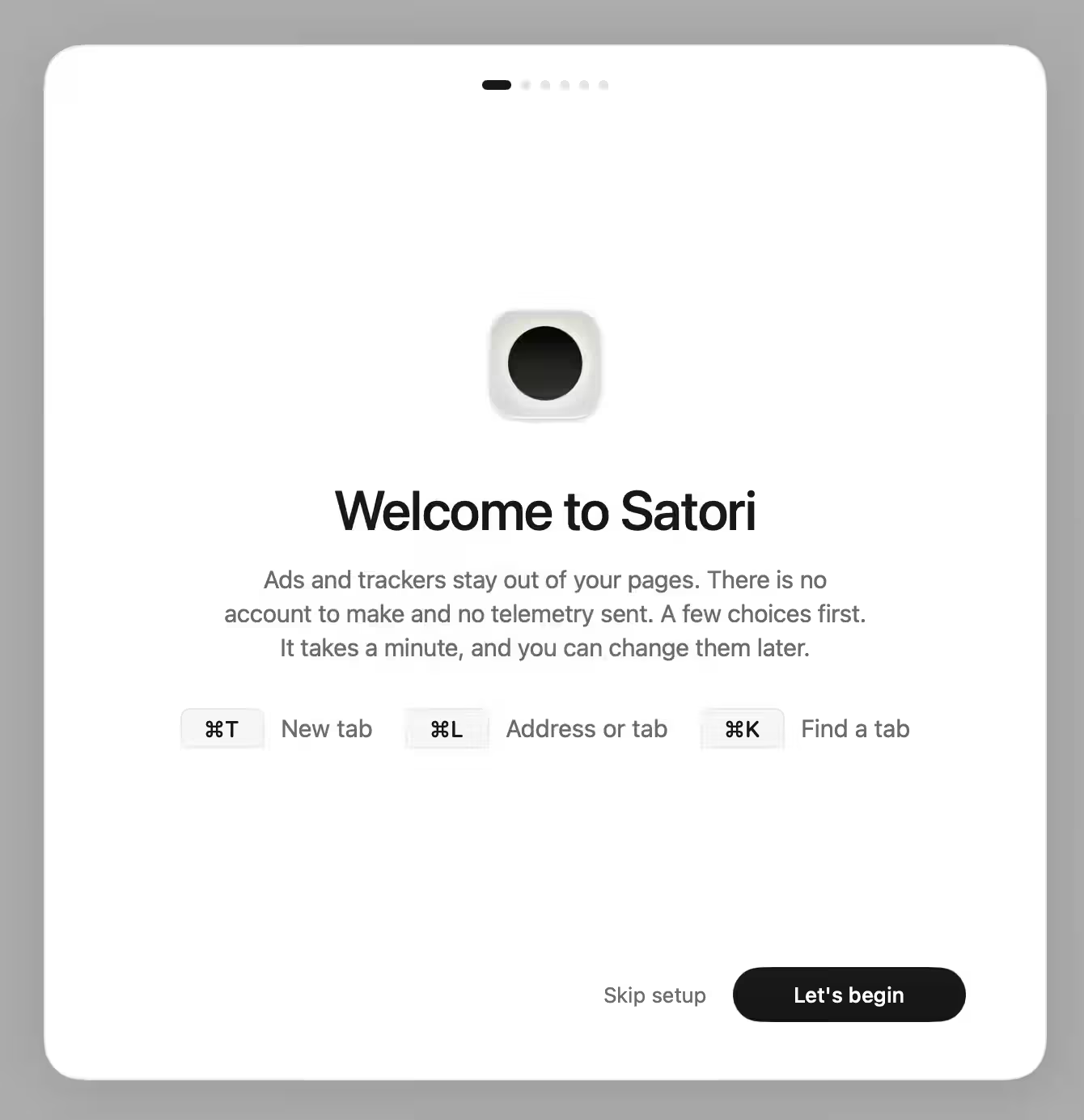
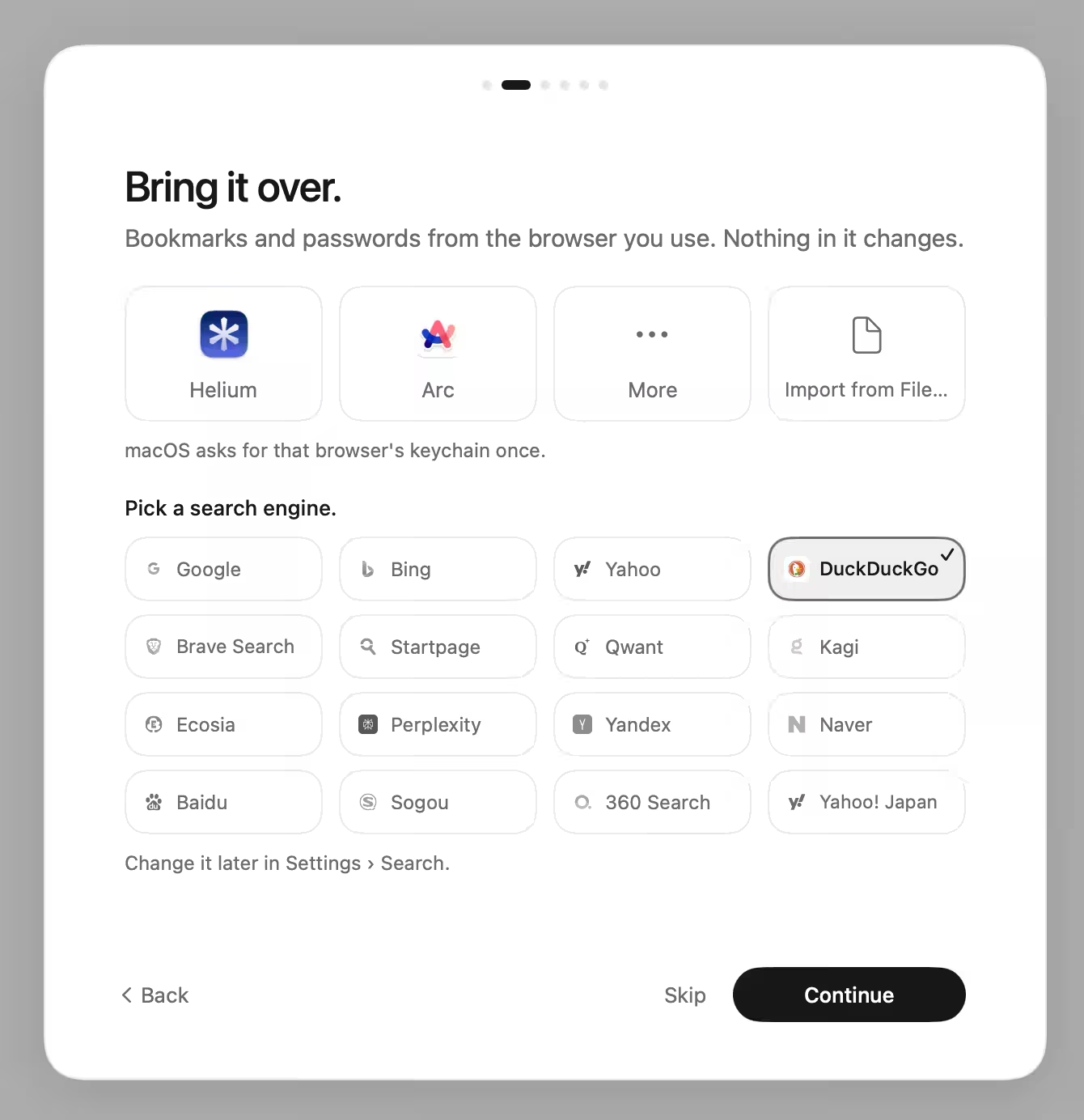
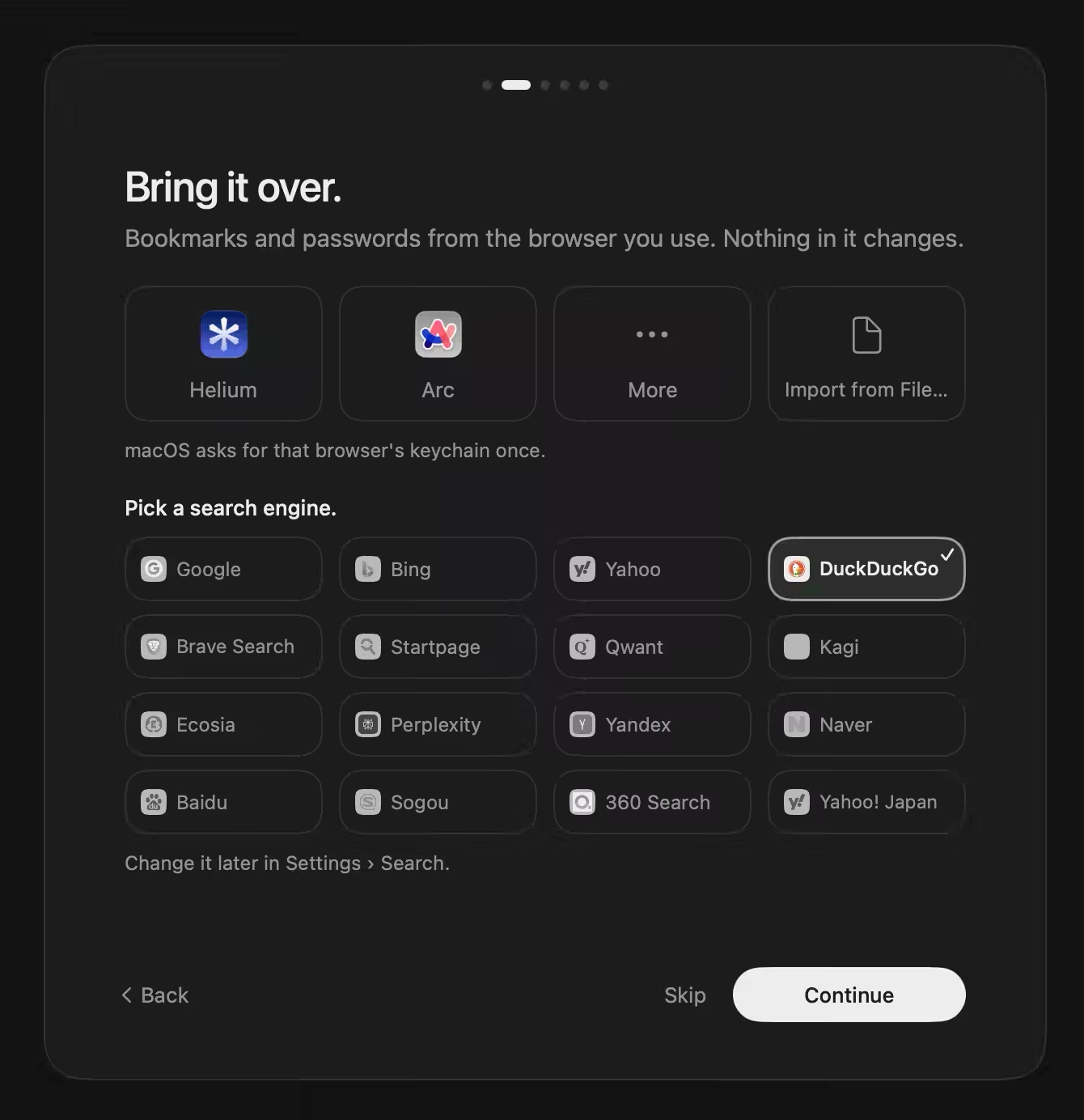
Type an address to go there, or type words to search. One field handles both. DuckDuckGo is the default search engine. To change it, go to Settings › Search, which also lists Yandex, Baidu, and Yahoo! Japan. You can choose the order and the default.
Search words go to the search engine only after you press Return. Satori does not show search suggestions. The address field completes addresses from your history and from a built-in list of popular sites.
Satori imports from Chrome, Arc, Dia, Brave, Edge, Opera, and other Chromium browsers. Import passwords from Passwords, and bookmarks from the bookmarks window: choose your browser, and macOS asks once for permission to read its keychain entry for passwords. It brings in passwords, your list of sites where you chose never to save a password, bookmarks from the bar, Other, and Mobile folders, and site icons. It does not bring in history, cookies, extensions, open tabs, autofill, or credit cards.
Satori does not import from Safari. To bring in bookmarks from Safari or Firefox, export them as an HTML file, then open the bookmarks window, choose Import from File… from the transfer menu, and pick the file. Passwords can also come in from a CSV file, through the Passwords panel.
Bookmarks come in as a folder of their own; a folder with the same name gets a numbered twin. A password from the other browser replaces a saved one for the same site and account. A bookmark import can be undone for 30 seconds. Imported passwords can be removed one by one in Passwords.
Satori downloads updates in the background and installs them when you quit; the new version opens the next time you launch. You can turn automatic checks off in Settings › About.
Updates come through Sparkle. Satori checks about five seconds after launch, then once a day, and Satori installs an update only if it is signed with Satori's update key. To check by hand, choose Check for Updates… in the Satori menu. Web apps do not check for updates themselves.
Press ⇧⌘S to switch between tabs across the top and tabs down the side. Settings › Tabs also sets the position. Pinned tabs keep their place in either layout.
To find an open tab by name, press ⌘K. It searches every Space. ⌃Tab steps through the tab row in order. To step by recent use instead, choose Settings › Tabs › Ctrl+Tab. Next and previous tab are also ⇧⌘] and ⇧⌘[.
A window can hold up to nine Spaces, each with its own name and icon. Spaces keep groups of tabs apart inside one window. ⌘1 to ⌘9 switch between them, and ⌥⌘→ and ⌥⌘← step through them in order. ⌥1 to ⌥9 pick a tab in the current Space.
To view two pages side by side, drag a tab onto another tab or onto the page. A divider sets the width of each page. You can also give Split View a shortcut in Settings › Shortcuts. Web apps do not have Split View, because each web app stays in its own window.
A tab you have not used for half an hour goes to sleep and gives its memory back. Its icon dims and a moon appears, so you can see which tabs will load when you open them. Click the tab to load the page again.
To keep a tab ready, use Keep Awake in the tab's menu. Pinned tabs stay awake already. An idle tab that holds music or a film paused stays awake for up to four hours. A tab out of sight also gets fewer timers, so it uses less of your Mac.
Saved passwords are in the login keychain, as internet passwords labeled Satori. History, open tabs, bookmarks, downloads, and hidden elements are kept in encrypted files under ~/Library/Application Support/Satori/. The files are encrypted with AES-GCM. The key is in your login keychain, so they are protected from other apps and other macOS accounts. Settings, site icons, extensions, and the data websites store (cookies, caches) are not encrypted by Satori.
Site icons are saved under names made with a keyed hash, and per-site settings such as colors, mute, and reading position are stored in macOS preferences under the same kind of hashed name, so neither lists the sites you visited. Sites where you paused the Shield blocker or chose never to save a password are listed by name in preferences.
Satori also writes a local crash log, crash.log, in the same folder. Nothing in it is sent anywhere. Private tabs add nothing to history, downloads, or bookmarks.
Satori sends the pages you ask for, and it asks each site for its own icon. Update checks go to brandkit.pro, and update downloads come from GitHub. Checks run about five seconds after launch, then once a day.
Before you press Return, two things can happen. The address Satori is completing from your history starts loading, on a blank tab only. A single word that is not in the dictionary is looked up in DNS with .com added. Search words go to the search engine only after you press Return.
Some requests happen only when you ask for them. A natural voice for Listen downloads once, 135 MB, when you pick it. Installing Bitwarden downloads it from the Chrome Web Store, and Satori checks the store for its updates about once a day. Satori sends no analytics, telemetry, or crash reports. The full list, with the reason for each item, is on the Privacy page.
Ad and tracker blocking is on by default. To turn it off for one site, open that site, click the Shield button next to the address, and switch off Blocking on (site name). If the button is missing, turn on Show Shield in the address field in Settings › Privacy & Security. The switch works only while blocking is on for every site. Turning it off reloads the page.
The setting covers the whole site. Pause example.com and www.example.com is paused too. Turning blocking back on does the same for both names.
When a site asks for the camera or the microphone, Satori shows the prompt in the window, for that site and that device. It remembers your answer for that site, except in private tabs.
Satori does not list these choices site by site. To forget every choice, go to Settings › Privacy & Security, under Site permissions, and choose Forget choices next to Camera and microphone.
Satori trusts the Russian Ministry of Digital Development's root only for .ru, .su, and .рф. Turn this off in Settings › Privacy & Security.
Satori keeps saved passwords in the login keychain and offers them under the address field. It does not fill sign-in forms on its own. A password fills in only after you click its account. The one exception is a sign-in dialog for a password-protected folder.
Show and Copy in Passwords ask for Touch ID or your account password. A copied password is marked concealed, so clipboard managers skip it. It is cleared from the clipboard after a minute, unless you copy something else. Open Passwords from the Satori menu, or press ⌥⌘L. You can also go to Settings › Passwords.
Settings › Appearance. Auto follows your Mac.
Settings › Appearance. Pick one of five icons, the standard one included, or put in any picture. Satori fits it into the shape of a Mac icon, with one for the light look and one for the dark.
Satori has nine Soundscapes: Focus, Energetic, Calm, Work, Meditative, Boost, Study, Ambience, and Nature. Soundscapes are off by default. Turn them on from the Soundscapes button, from View › Soundscapes, or from Settings › Soundscapes.
Soundscapes fade out while a tab plays sound, and they pause during a call. They return a few seconds after the call ends. Binaural tones are on by default, and you can turn them off in Settings › Soundscapes. The sounds are composed on your Mac as they play, so nothing is downloaded.
Each site's color is remembered. Turn Adaptive on or off in Settings › Appearance.
Press ⇧⌘H, then point at the element. It stays hidden on that site. Esc ends the mode.
Settings › Shortcuts lists 14 actions, which take ⌘ combinations. It also sets a key for a small window and for each Space, and the modifier for numbers. The full table of shortcuts is under Keyboard shortcuts on this page.
Focus (⌃⌘S) hides the tabs and the bar, so the page fills the window. Point at the edge of the window to bring them back.
Reading mode (⇧⌘R) finds the article on the page and shows it with the theme and text size you choose.
Listen reads an article aloud, paragraph by paragraph. Space pauses it. You can use the system voice, Apple's voices, or natural voices (Supertonic 3). A natural voice downloads once, 135 MB, when you pick it.
Summary writes a short version of an article. It needs macOS 26 and Apple Intelligence, and it runs on your Mac.
⇧⌘Y translates the page on your Mac with Apple's translator. The globe button beside Settings holds the language choice for each site.
⇧⌘P floats a video. A video with sound also floats when you leave its tab (off in Settings › Tabs).
Chrome extensions are switched off for now. Bitwarden works, on macOS 15.4 or later.
Pick Bitwarden in Welcome or in Settings › Passwords. Satori shows what Bitwarden may do before it installs it. Satori's own suggestions and save prompts step aside while Bitwarden is chosen.
Other Chrome extensions are switched off for now. Satori will bring them back one at a time, as each is known to work.
Bitwarden reaches only what its manifest asks for. An update that adds permissions or sites asks you again.
Right-click the Bitwarden button in the top bar to hide it or reload it. Settings › Top Bar brings a hidden button back.
Loading an unpacked extension folder is switched off for now, along with the other Chrome extensions.
Links from other apps open in a small Kensho window first, with the address at the top, so you can check where a link goes before you open the page. Press Open in Satori (⌘O) to keep the page in the main window.
To open an empty Kensho window from any app, press ⌥⌘N. Inside a Kensho window, ⌘F finds text on the page. To turn Kensho off, go to Settings › General. After that, links from other apps open directly in Satori.
Satori offers saved passwords under the address field. Click the account to fill in its password. Sign-in dialogs for password-protected folders are answered for you only over https, when there is one saved login for that site.
Click it. It loads again. To keep a tab awake, use Keep Awake in its menu.
That is expected. Soundscapes pause while a call uses the microphone, and return a few seconds after the call ends. Turn this off in Settings › Soundscapes.
The pill says so and offers Try again. Show Original brings back the page in its own language.
Links with no app to open them, such as slack://, are ignored. Check that the app the link needs is installed.
| Action | Shortcut |
|---|---|
| New tab | ⌘T |
| New window | ⌘N |
| New private tab | ⇧⌘N |
| Address field | ⌘L |
| Find on page | ⌘F |
| Switch tab by name | ⌘K |
| Tabs across the top or down the side | ⇧⌘S |
| Next or previous tab | ⌃Tab, ⌃⇧Tab |
| Switch Space | ⌘1 to ⌘9 |
| Pick tab in Space | ⌥1 to ⌥9 |
| Next or previous Space | ⌥⌘→, ⌥⌘← |
| Focus | ⌃⌘S |
| Reading mode | ⇧⌘R |
| Translate Page | ⇧⌘Y |
| Picture-in-picture | ⇧⌘P |
| Hide anything | ⇧⌘H |
| Copy Address (without tracking tags) | ⇧⌘C |
| Copy as Markdown Link | ⌥⇧⌘C |
| Add bookmark | ⌘D |
| Show bookmarks | ⌥⌘B |
| Passwords | ⌥⌘L |
| Paste as plain text | ⌥⇧⌘V |
| Stop loading | ⌘. |
⌘P | |
| Open in Satori (from Kensho) | ⌘O |
| Empty Kensho window from any app | ⌥⌘N |
| Inspect (Develop menu, if turned on) | ⌥⌘I |
| JavaScript console (Develop menu, if turned on) | ⌥⌘C |
| Close tab | ⌘W |
| Reopen closed tab | ⇧⌘T |
| Next or previous match | ⌘G, ⇧⌘G |
The FAQ has short answers about accounts, privacy, updates, and extensions. To report a problem, open an issue on GitHub.