A minute of setup
The first time Satori opens, a few short steps set it up the way you like. Every step can be skipped.
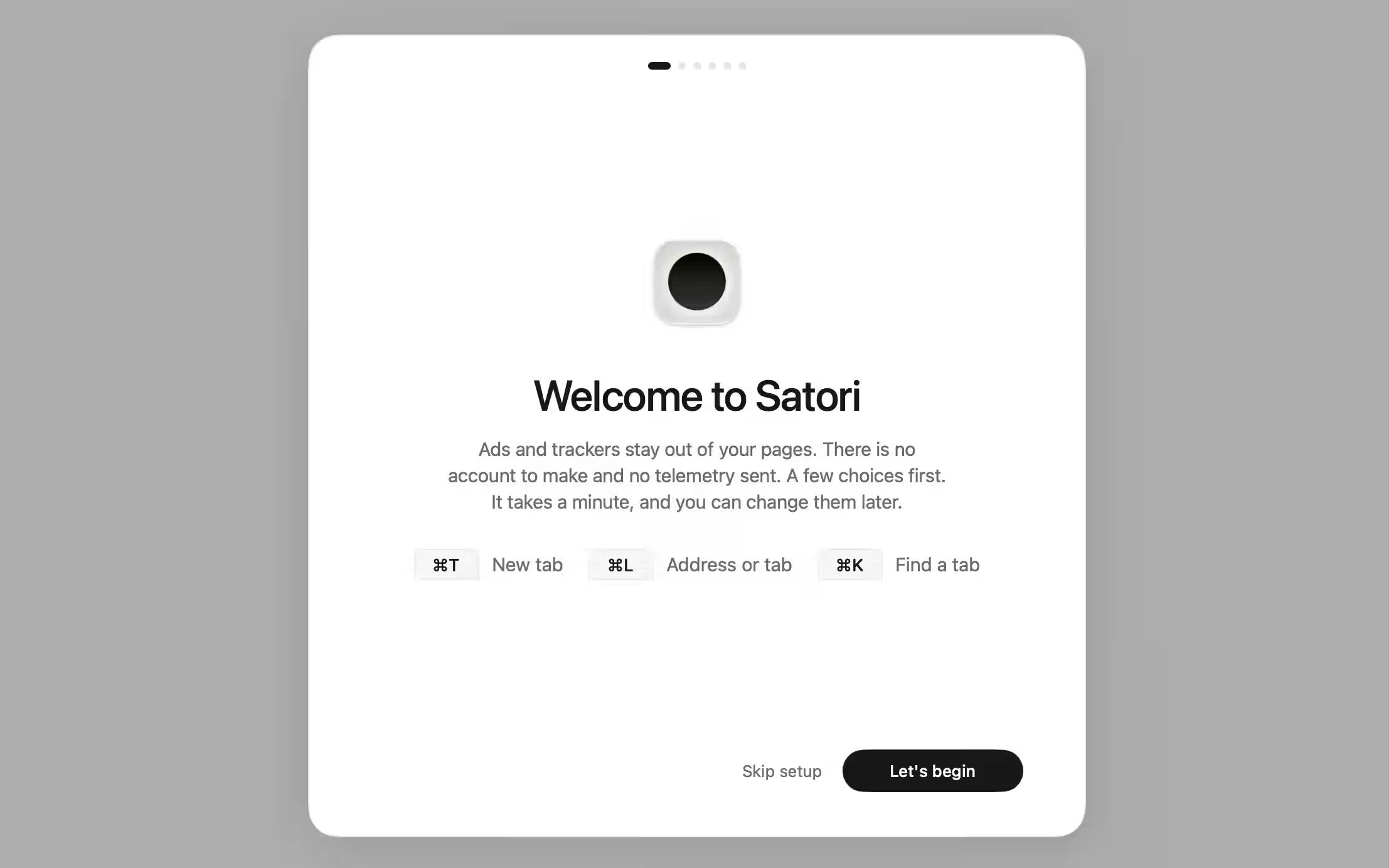
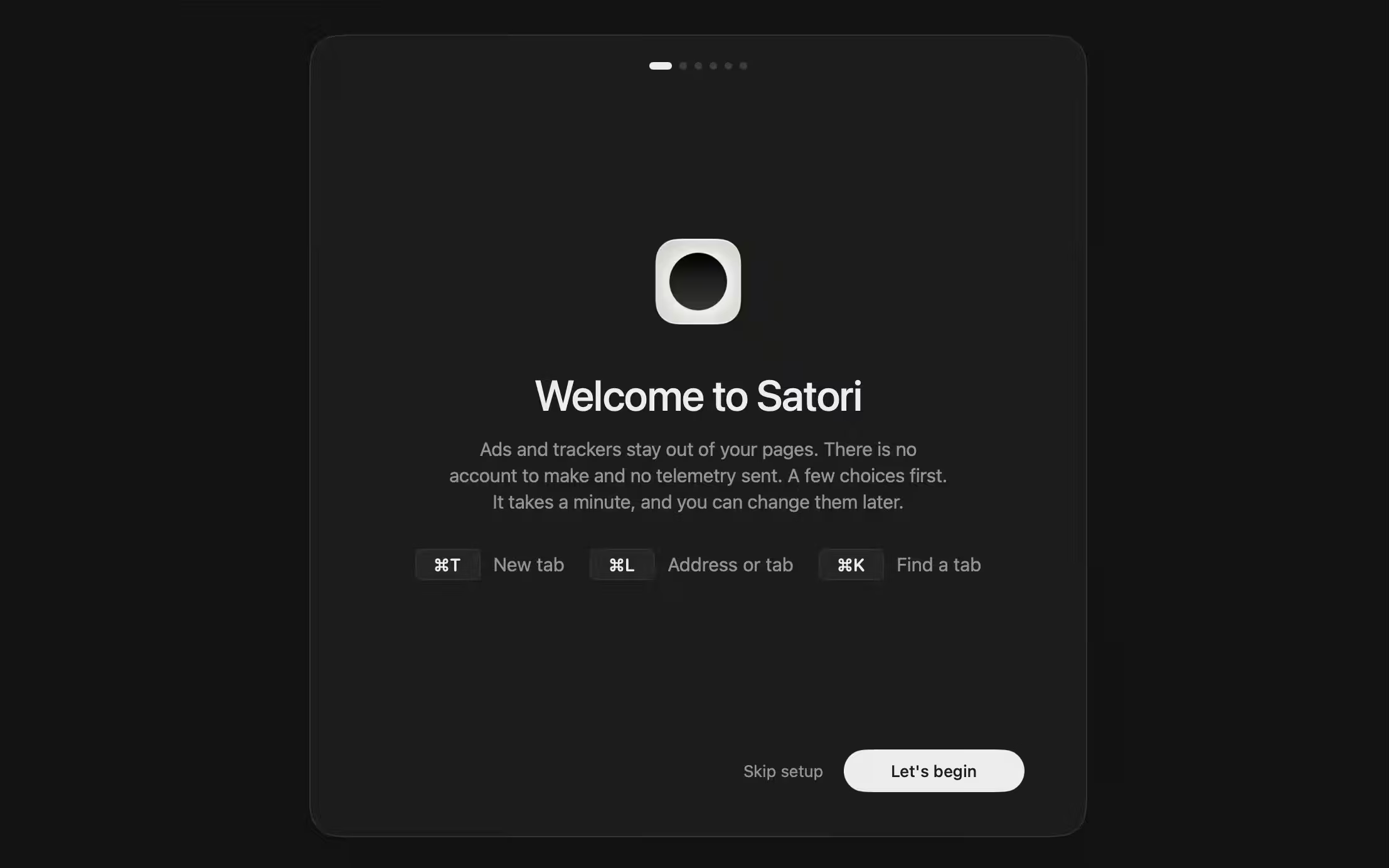
Satori opens quiet. Ads and trackers are blocked and cookie banners are closed before you touch a setting. The Welcome then asks a few questions, one screen each.
If another browser is on your Mac, Satori offers to bring its bookmarks and passwords over. Nothing in it changes. Pick a search engine on the same screen.
Pick a theme: light, dark, or Auto, which follows your Mac. Then put the tabs across the top or down the left.
Choose a Soundscape, or leave sound off, and pick an icon.
On macOS 15.4 or later, decide where passwords live: in your Mac’s keychain, or with Bitwarden.
The last screen, Quiet by default, shows what is already on: blocking ads and trackers, closing cookie banners, and Small windows (Kensho). Its button makes Satori your default browser and starts it. If Satori is already your default, the button only starts it.
Skip a step to move on, or press Skip setup on the first screen to start with the defaults. Change any choice later in Settings › Appearance, Tabs, Search, Soundscapes, or Passwords. Welcome… in the Satori menu opens it again.